Introduction#
I was recently doing some work with VSPC where we are migrating to a new architecture using the Frontend, Backend, and SQL server deployment. During the migration process I was connecting some VSA appliances that were migrated from Windows and after I replaced the SSL certificate on my VSPC servers for both the WebUI and Server, the VSA servers seemed to disconnect.
I opened a ticket with support and with their help got some tips on how to fix this issue when you do change your SSL certificate with a new one. I will outline the process below.
VSA Certificate Fix#
The following steps are required in order to address the issue with the VSA connection to the VSPC Portal -
- Open your VSPC Console Web UI and go to Configuration > Certificates
- Highlight the “Server” certificate shown in the Type column and click the Show Certificate button
- Copy the Thumbprint for the SSL certificate which will be used in one of the following steps
- Request Root Shell Access for your VSA appliance and approve it with the Veeam Security Officer
- Open the console of the VSA appliance in your hypervisor
- Log in using the Veeam Admin account and credentials including MFA code
- Navigate to the Remote Access Configuration menu
- Select the Enter Root Shell option which will drop you down to a command line to run the following three steps to check, verify and update the thumbprint as well as verify again the connection to VSPC
veeamconsoleconfig –show veeamconsoleconfig -s
veeamconsoleconfig –validate_cert cert_thumbprint
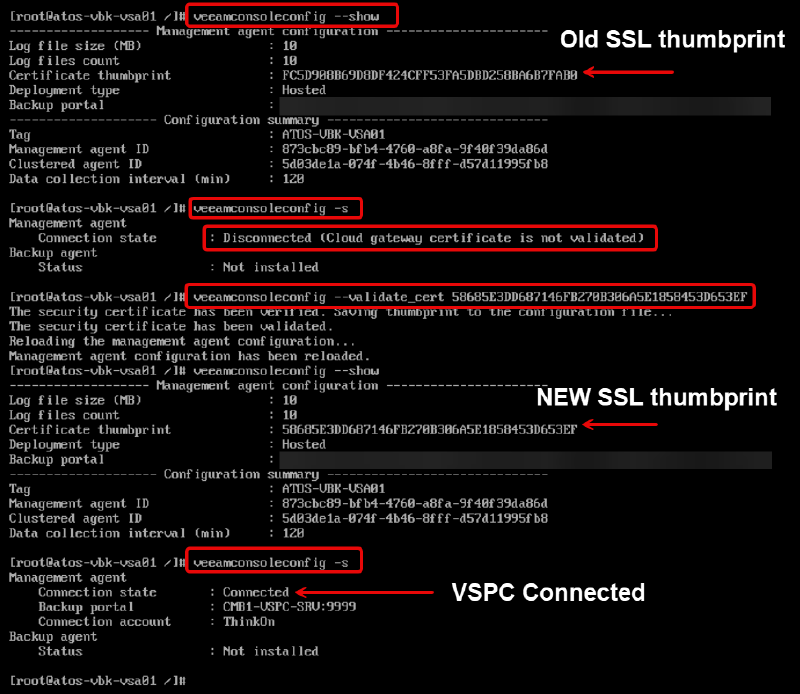
After running the commands and getting a successful connection status it can take up to 15 minutes for the VSPC Console to refresh and show a Healthy state.
Closing#
As you can see the fix for the VSA connection to VSPC Console after an SSL certificate update is fairly simple and straightforward. I hope this helps anyone that runs in to this problem which allows you to fix it yourself.