With the release of Veeam Backup & Replication 13 there is a new feature that you can use to set up two nodes in an HA Cluster configuration for high availability. I am going to outline the process below and keep in mind that you will need to have a VDP Premium license in order to do this as that is a hard requirement. Now let’s look at HA Clustering with Veeam VSA.
Configuring a Veeam VSA HA Cluster#
The HA cluster configuration process involves two major phases: enabling the HA feature on both nodes via the Host Management Console and then assembling the cluster through the Veeam Backup & Replication Console.
Enable High Availability on Both Nodes via MGMT UI#
Before the cluster can be assembled, the HA capability must be enabled on each Veeam Software Appliance independently through the Host Management Console (Web interface on port 10443).
1. Access the Host Management Console of the first VSA node by navigating to https://
2. Navigate to the Integrations section » Backup Infrastructure and locate the High Availability heading.
3. Click the Submit Request link to enable HA. Since this operation exposes configuration database content (including credentials) to a second node, the Security Officer must approve the request. (If the Security Officer was not enabled during the initial configuration of your VSA server then this will be approved automatically.)
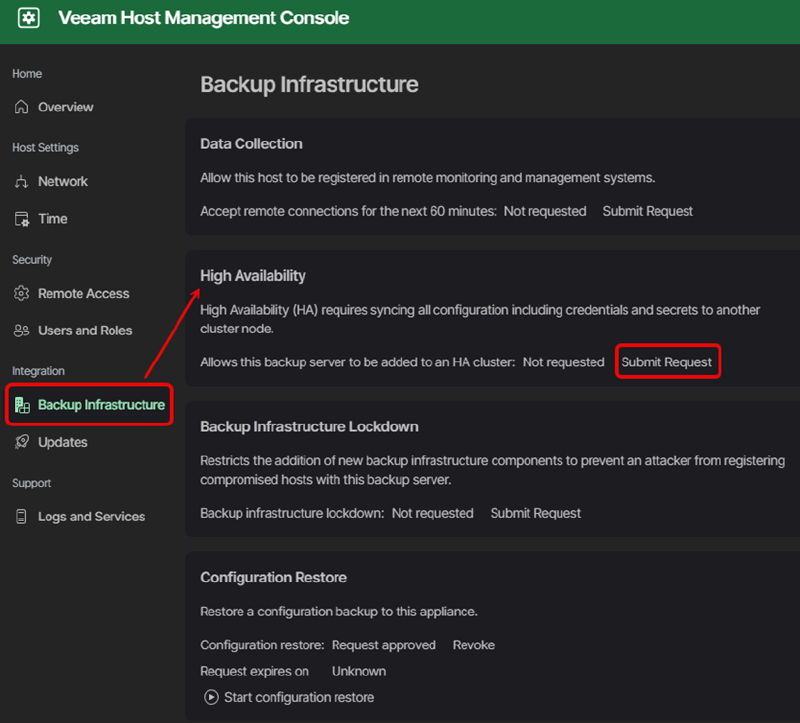
4. Approve the request by logging in as the Security Officer (if enabled) and confirming the HA enablement.
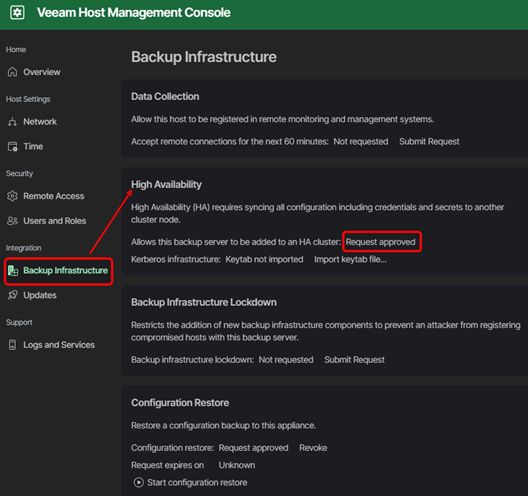
5. Repeat the process on the second VSA node. Both nodes must have HA enabled before cluster assembly can proceed.
NOTE: If Multi-Factor Authentication (MFA) is enabled on the Host Management Console (which is recommended), ensure that OTP codes are configured for both the administrator and Security Officer accounts on both nodes before proceeding. Time synchronization between nodes must also be accurate for OTP validation to succeed.
Assemble the Cluster via the VBR Console#
Once HA has been enabled and approved on both nodes, the cluster is assembled using the New High Availability Cluster wizard in the Veeam Backup & Replication Console (the Windows-based remote management console).
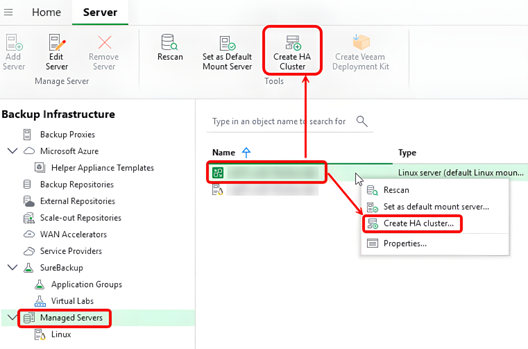
Step 1 — Launch the Wizard. Connect the Veeam Backup & Replication Console to the machine that will serve as the primary node. Open the Backup Infrastructure view, select Managed Servers in the inventory pane, then select the Linux host and click Create HA Cluster on the ribbon (or right-click the host and select Create HA Cluster).
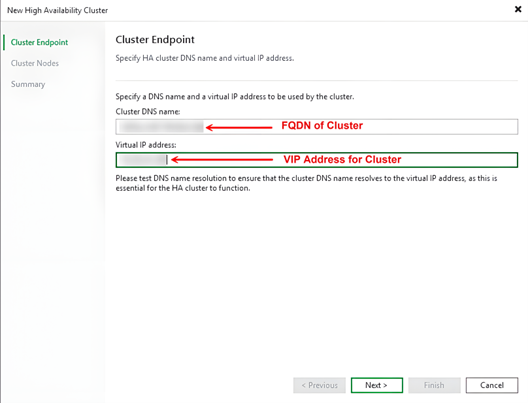
Step 2 — Specify Cluster Settings. Enter the Cluster DNS Name and the Virtual IP Address. The DNS name should match the DNS record you created during the preparation phase. Click Next to proceed.
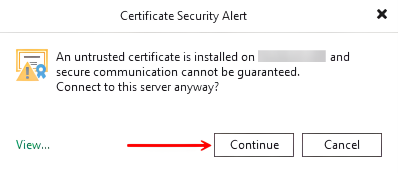
Step 3 — Specify Cluster Nodes Settings. Select the IP address of the first node (the current host), then enter the IP address or hostname of the second VSA node along with credentials for authentication. Click Next to verify connectivity and accept the SSL certificate warning by clicking Continue.
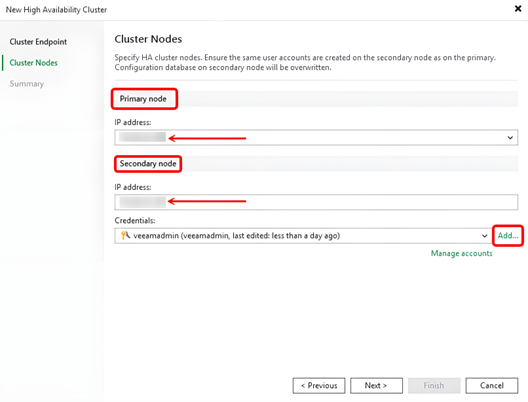
The above figure shows the cluster node information and after you click Next you will get the Certificate Security Alert dialog below where you click Continue to proceed.
Step 4 — Finish the Wizard. Review the summary and click Finish to begin cluster assembly. Veeam Backup & Replication will configure both nodes, establish database replication, and assign the virtual IP. This process typically takes 10–15 minutes depending on the environment.
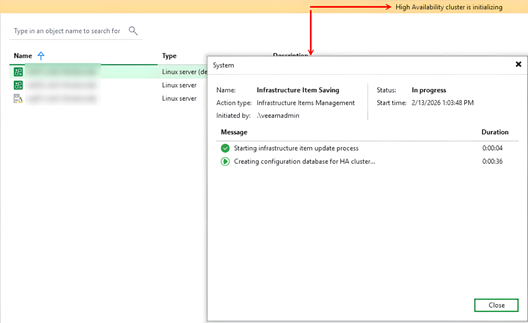
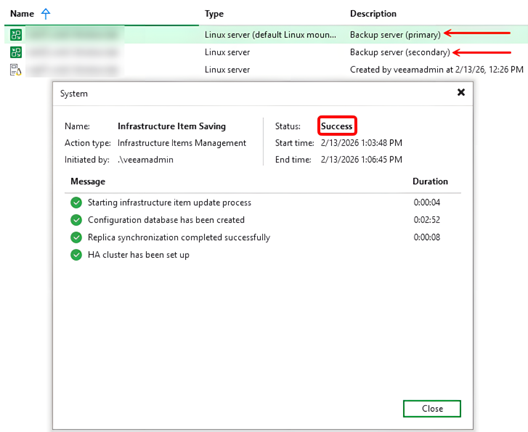
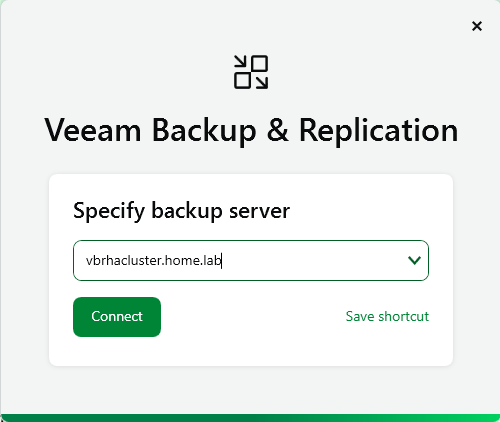
Once assembly completes, all status indicators in the console should show green. From this point forward, you must connect to the backup server exclusively using the cluster DNS name or cluster IP address — not the individual node addresses.
NOTE: There is a known issue in version 13.0.1 where HA cluster creation can fail if a capacity tier is configured or if the local default repository is still present. If you encounter errors during assembly, try removing the default local repository and pointing the configuration backup to an external repository before retrying the wizard.
Now when you launch the Veeam Backup & Replication Console to connect to your newly deployed cluster you can specify the FQDN or IP address of the HA Cluster instead of the node FQDN/IP.
That completes this quick blog on setting up the Veeam HA Clustering with the new VSA Appliance. Hopefully you found this useful.